
Manage access by department
Give people and Access Groups the right role in the right part of your organization.
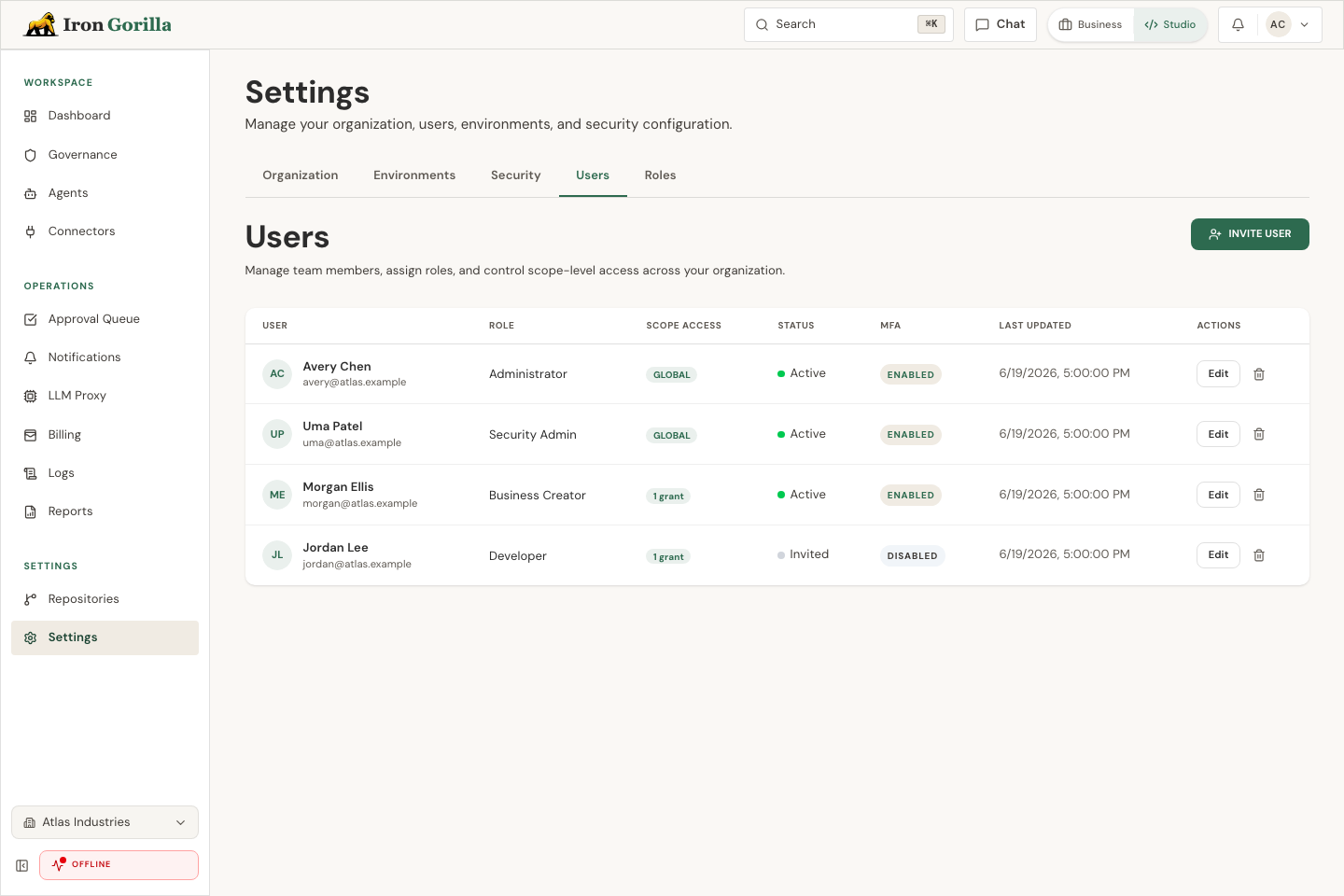
People: invite and activate someone
Open Settings, then Access Control. People lists everyone who can sign in or has an open invitation.
Only organization Admins can change access. Security Admins and approved custom roles can use Access Inspector for the departments and Functional Groups they are allowed to review.
- Choose Invite User.
- Enter the person’s work email and name, then send the invitation.
- Open Assignments and grant the role and scope they need.
- Return to People and confirm their status changes from Invited to Active after they finish sign-in.
A person with no assignment can sign in, but cannot use product features until an Admin grants access.
Choose the right scope
Organization access covers every department and Functional Group. Department access covers that department and its Functional Groups. Functional Group access covers only that group.
A person can have more than one role at the same scope. Their available actions are added together. There is no deny assignment, so remove an unneeded role instead of trying to override it with a smaller one.
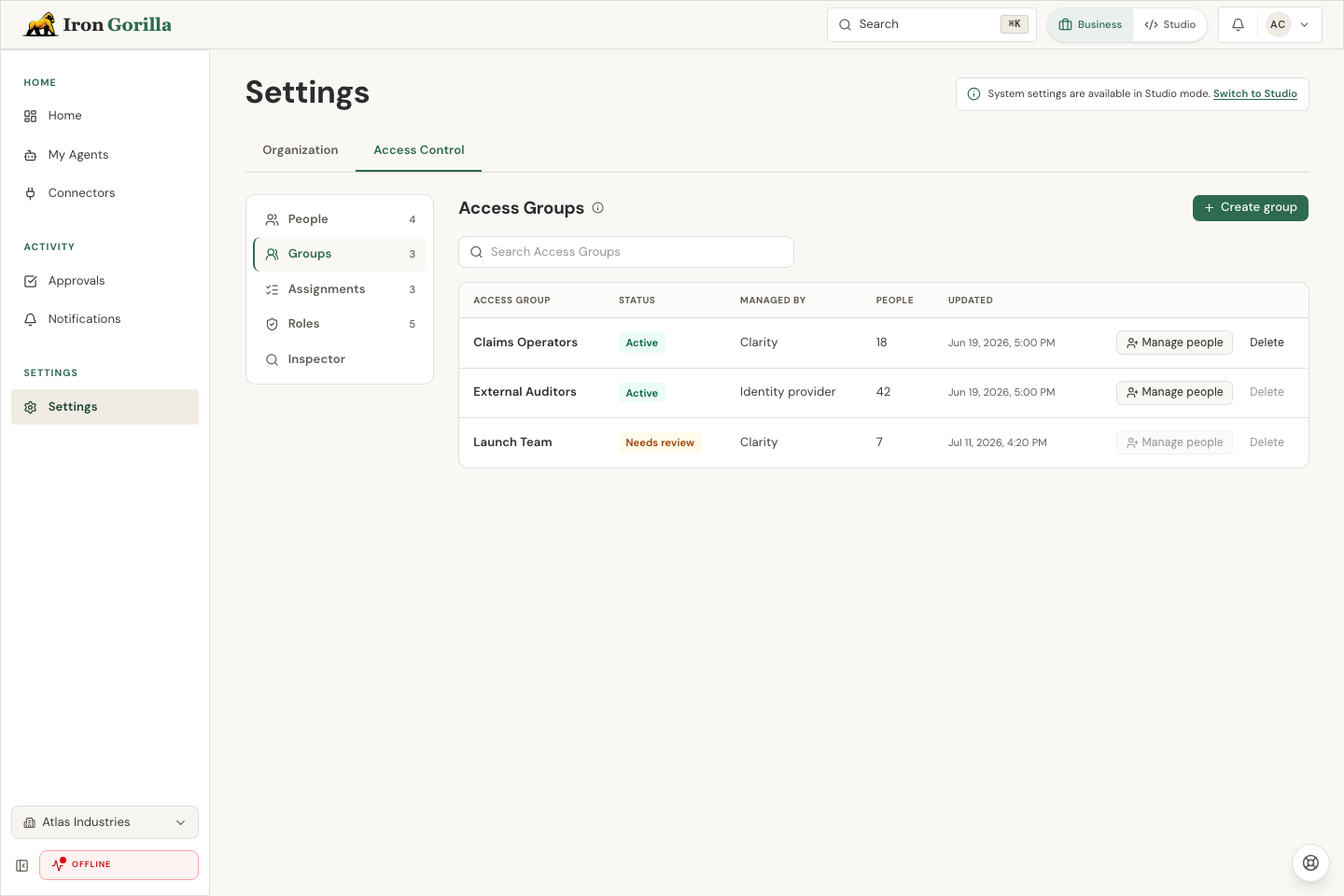
Access Groups: reuse the same access
Access Groups are flat permission groups. They are separate from Functional Groups, which organize agents, policies, usage, and other product resources inside a department.
- Open Groups and choose Create group.
- Use a short name that matches the team or responsibility, then create the group.
- Choose Manage people and add everyone who should receive the same access.
- Open Assignments and assign the Access Group to a role and scope.
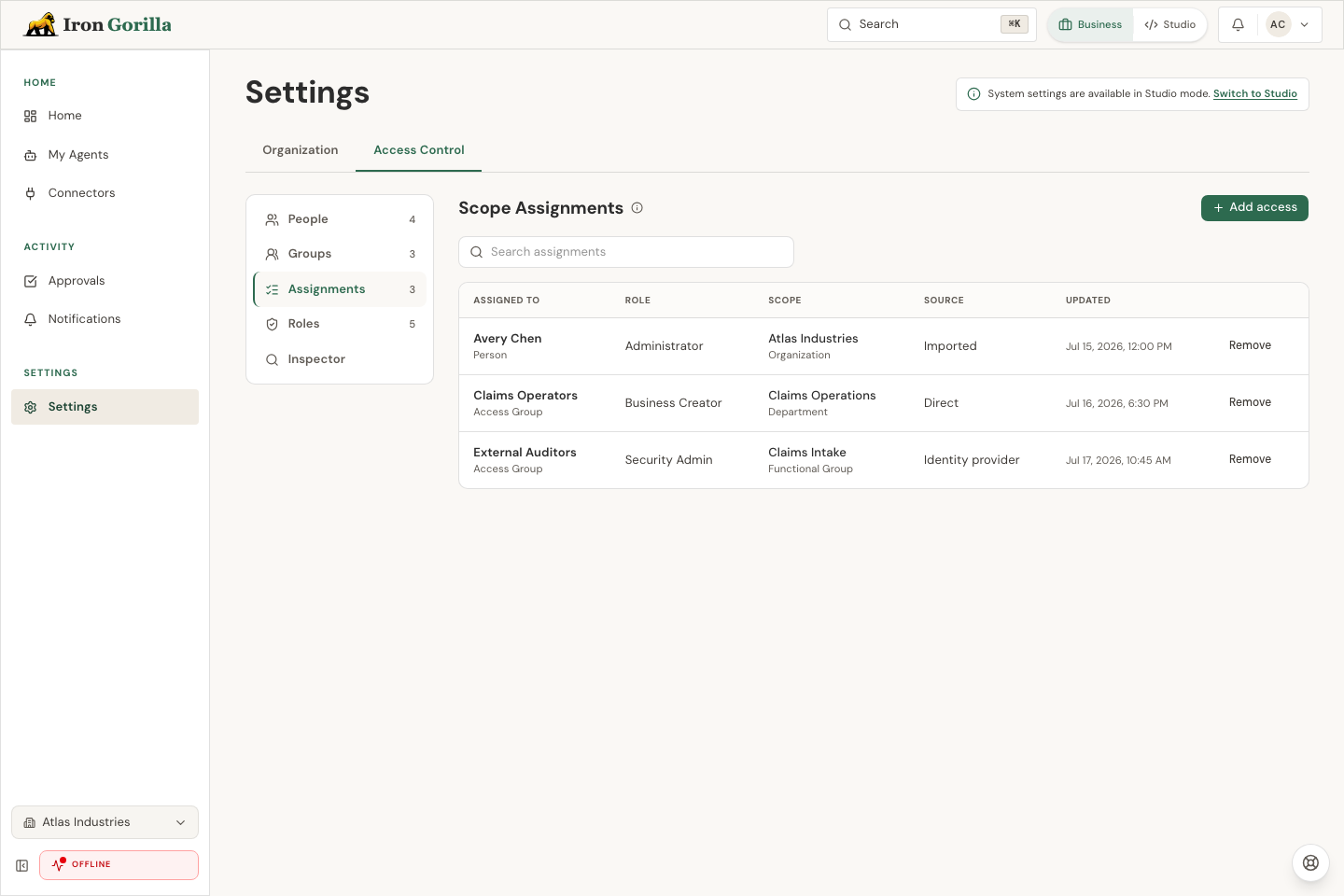
Scope Assignments: grant access
- Open Assignments and choose Add access.
- Choose a person or Access Group.
- Choose the role that matches the work.
- Choose the organization, department, or Functional Group where the role applies.
- Review the impact, then apply the change.
Admin is always an organization-wide role. Iron Gorilla also keeps at least one active person as a direct Admin so the workspace cannot lose its recovery owner.
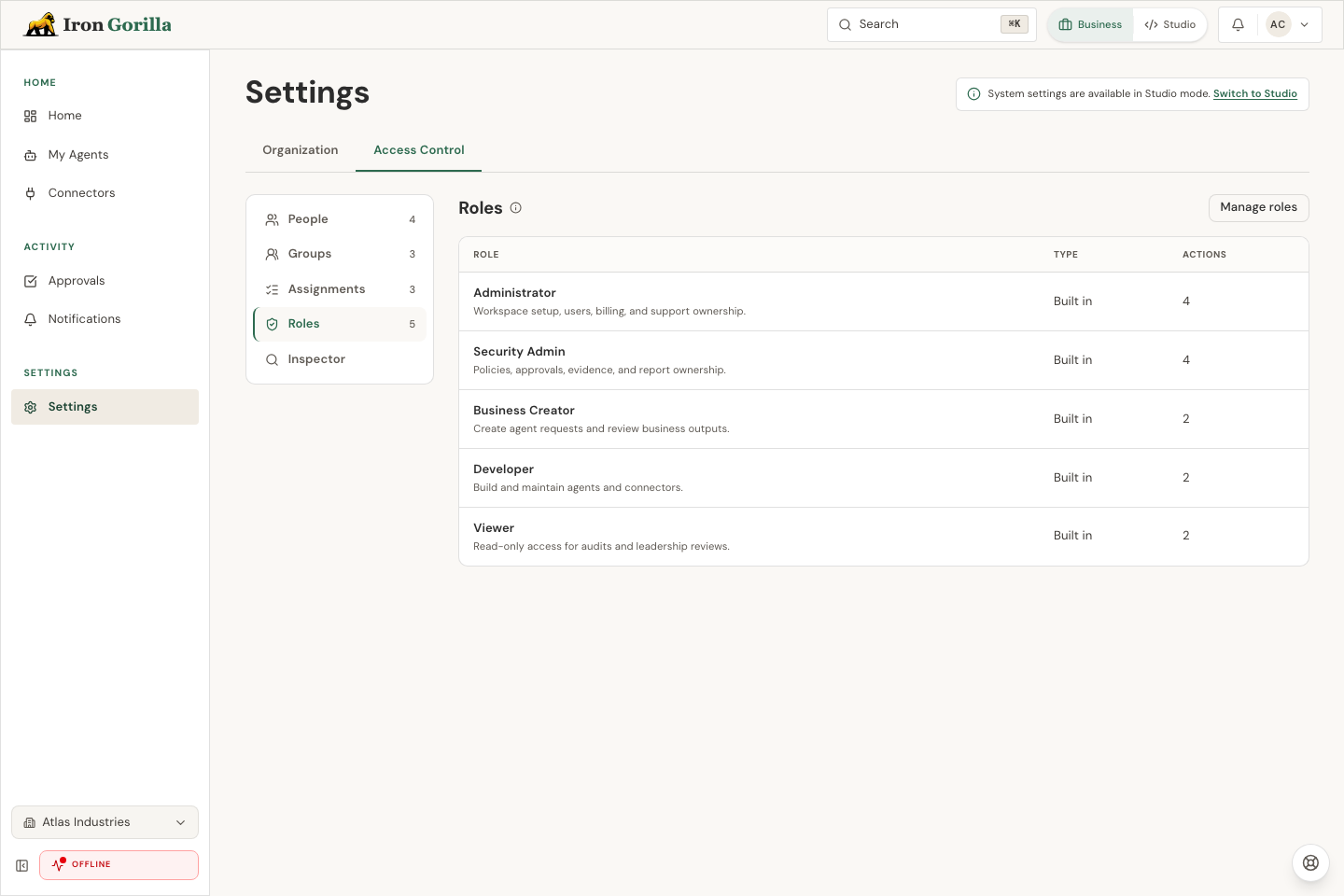
Roles: choose available actions
Roles are reusable sets of product actions. Open Roles to compare the available role names, whether each role is built in or custom, and how many actions it includes.
Choose Manage roles when you need to review or change a custom role. Return to Assignments to decide which person or Access Group receives the role and where it applies.
Understand what becomes visible
The selected scope applies across the product. It limits the agents, policies, approvals, audit evidence, connector resources, model rules, traces, usage, budgets, and operational records the role can use.
Organization billing configuration, the financial ledger, and global model-provider settings remain organization-wide. When a mutable resource moves to another scope, its access moves with it; older audit evidence keeps the scope it had when the event occurred.
Access Inspector: explain access
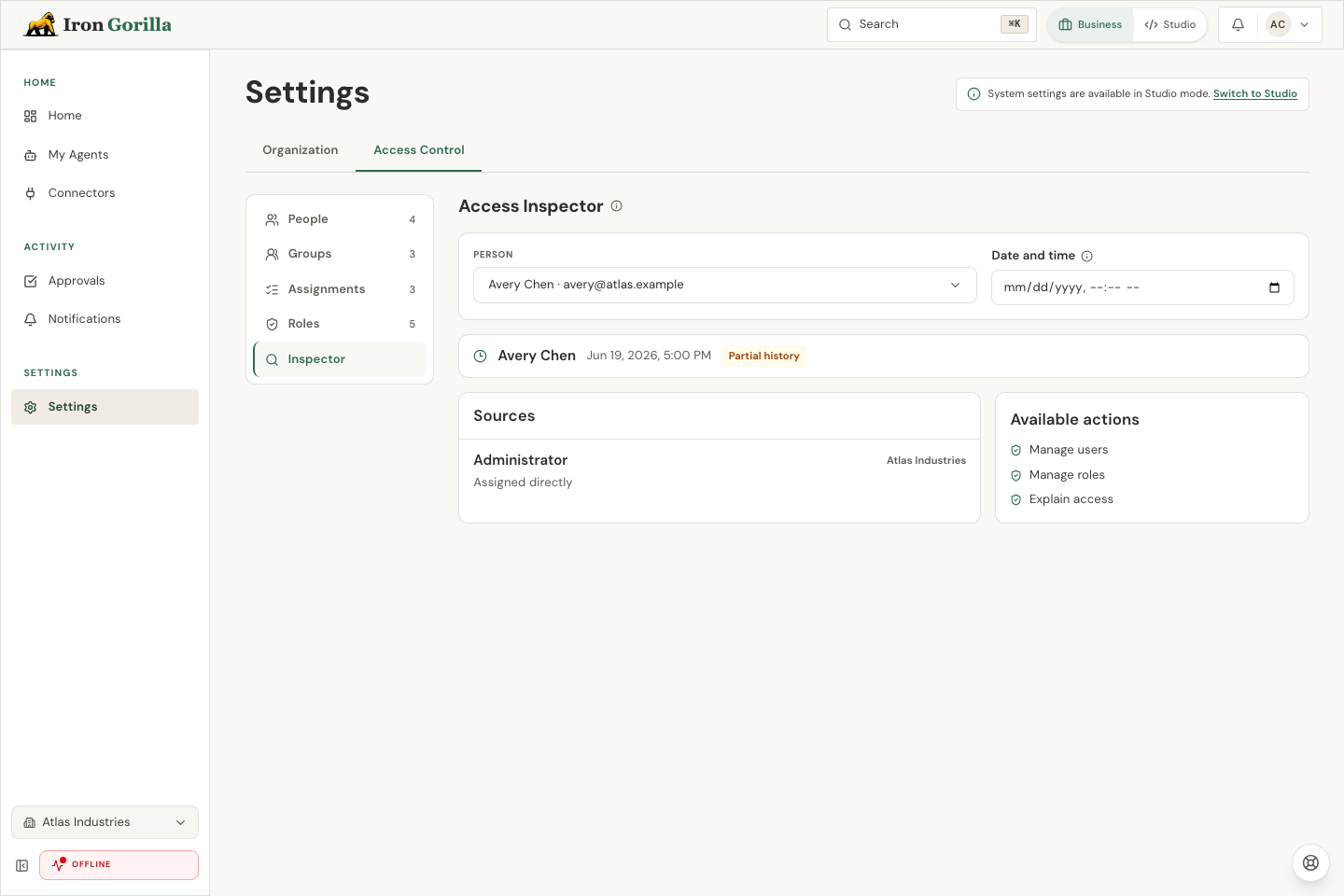
Leave Date and time blank for current access, or choose an earlier time to investigate a past decision. Complete history is available from the access-control launch date; older history is shown when reliable evidence exists.
- Open Inspector and choose a person.
- Review Sources to see every direct assignment and Access Group that contributes to access.
- Review Available actions to see the resulting permissions in readable language.
- Remove the extra source assignment if access is broader than expected.
SCIM and large changes
SCIM creates and updates identity-provider-owned Access Groups. If an incoming group name conflicts with an existing group, Iron Gorilla holds it for review instead of merging memberships. Existing priority mappings appear as proposed assignments and do not grant access until an Admin reviews them.
Large imports run in the background and report each failed item without undoing successful items. Sensitive changes and large batches ask for a recent MFA check. If another Admin changes access while your page is open, refresh and review the updated plan before applying it.